The Package Firewall is Endor Lab’s SaaS solution that offers real-time protection against malicious packages during software installations. It safeguards your software supply chain by preventing malicious packages from reaching your developers. Positioned between package managers and public package registries, it automatically blocks the installation of packages containing malware while allowing safe packages to install normally.
Security teams often discover malware only after it has already been installed, forcing engineers to perform reactive cleanup. The Package Firewall closes that gap by intercepting every package request before it completes. You must configure Artifactory to route package traffic through Endor Labs as the remote source. Any package flagged as malicious is blocked instantly and returns an error, so it never reaches your environment. Legitimate packages pass through unchanged, keeping your developers productive and your pipeline secure.
The Package Firewall is supported for the following ecosystems:
- npm
- pip
How it works
The Package Firewall inspects package requests before they are served. When a developer or CI pipeline requests a package to download, the request goes to your private registry, such as JFrog Artifactory.
Configure Artifactory to use the Package Firewall URL as its remote source instead of upstream package registries. This setup ensures that every package request is inspected before the package is downloaded.
The following steps describe how traffic flows through the Package Firewall, how each package is inspected, and how blocked requests are recorded.
-
Route traffic through the Package Firewall: Artifactory forwards each request to the Package Firewall so that every package fetch is inspected before it is served to the developer or pipeline.
-
Authenticate and control access: Requests to the Package Firewall require an Endor Labs API key with the appropriate role and license.
-
Inspect each package request: For each package and version, the Package Firewall parses the ecosystem, package name, and version and checks them against Endor Labs’ malware database. The check happens in real time so the Package Firewall can allow or block the request before the client receives the package.
-
Firewall decision: Based on the malware check, the Package Firewall either blocks or allows the install.
- If malware is detected, the Package Firewall blocks the request. Artifactory returns HTTP 404 to the client and the package is not installed. The Package Firewall also records an event with the package, version, and reason.
- If malware is not detected, the Package Firewall allows the install and redirects the client with HTTP 307 to the upstream registry. The package is then downloaded directly from the public registry through this redirect.
-
View events and blocked packages: Package Firewall logs record blocked requests. You can review these logs for debugging and compliance. The logs include details such as blocked package, version, time of the event, and the malware detection reason.
Prerequisites
- You must have either of the following Endor Labs licenses: OSS Pro or Supply Chain.
- JFrog Artifactory with permission to create remote repositories and configure credentials.
- Download and install endorctl. See Install and configure endorctl for more information.
Configure the Package Firewall
Complete the following steps to set up the Package Firewall with JFrog Artifactory:
- Create an API key for the Package Firewall.
- Configure JFrog Artifactory.
- Verify that the Package Firewall is blocking malware.
- Query Package Firewall logs.
Create an API key for the Package Firewall
You must create an API key with the SYSTEM_ROLE_PACKAGE_FIREWALL role. This key is used by JFrog Artifactory to authenticate to the Package Firewall. Run the following command and replace:
<namespace>with your namespace.<API key name>with the name of the API key for the Package Firewall use case.<YYYY-MM-DDTHH:MM:SSZ>with the API key expiration in ISO 8601 UTC format, for example2026-12-31T23:59:59Z.
export NAMESPACE="<namespace>"
export KEY_NAME="<API key name>"

endorctl api create -r APIKey -n "$NAMESPACE" --data '{
  "meta": { "name": "'"$KEY_NAME"'" },
  "spec": {
    "permissions": { "roles": ["SYSTEM_ROLE_PACKAGE_FIREWALL"] },
    "expiration_time": "<YYYY-MM-DDTHH:MM:SSZ>"
  },
  "propagate": true
}'
From the response, save the username and password in a secure location. These credentials are used when configuring the JFrog Artifactory remote repository.
- Username:
spec.key - Password:
spec.secret
Configure JFrog Artifactory
Configure a remote repository in JFrog Artifactory so package traffic goes through the Package Firewall. Use the steps below for either npm or PyPI.
Configure JFrog Artifactory for an npm remote repository
-
Select Administration > Repositories from the left sidebar.
-
Click Create a Repository and select Remote.
-
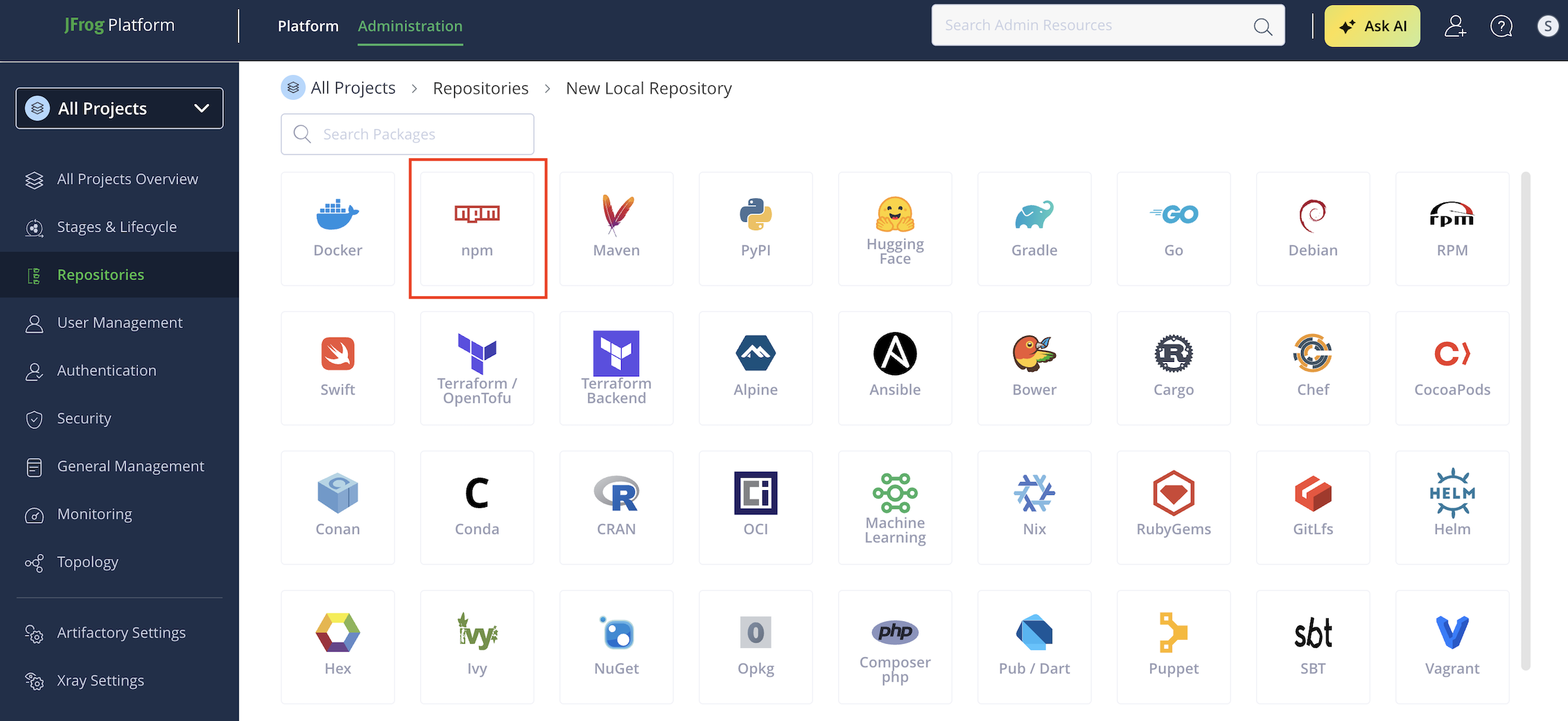
Select npm as the package type.
-
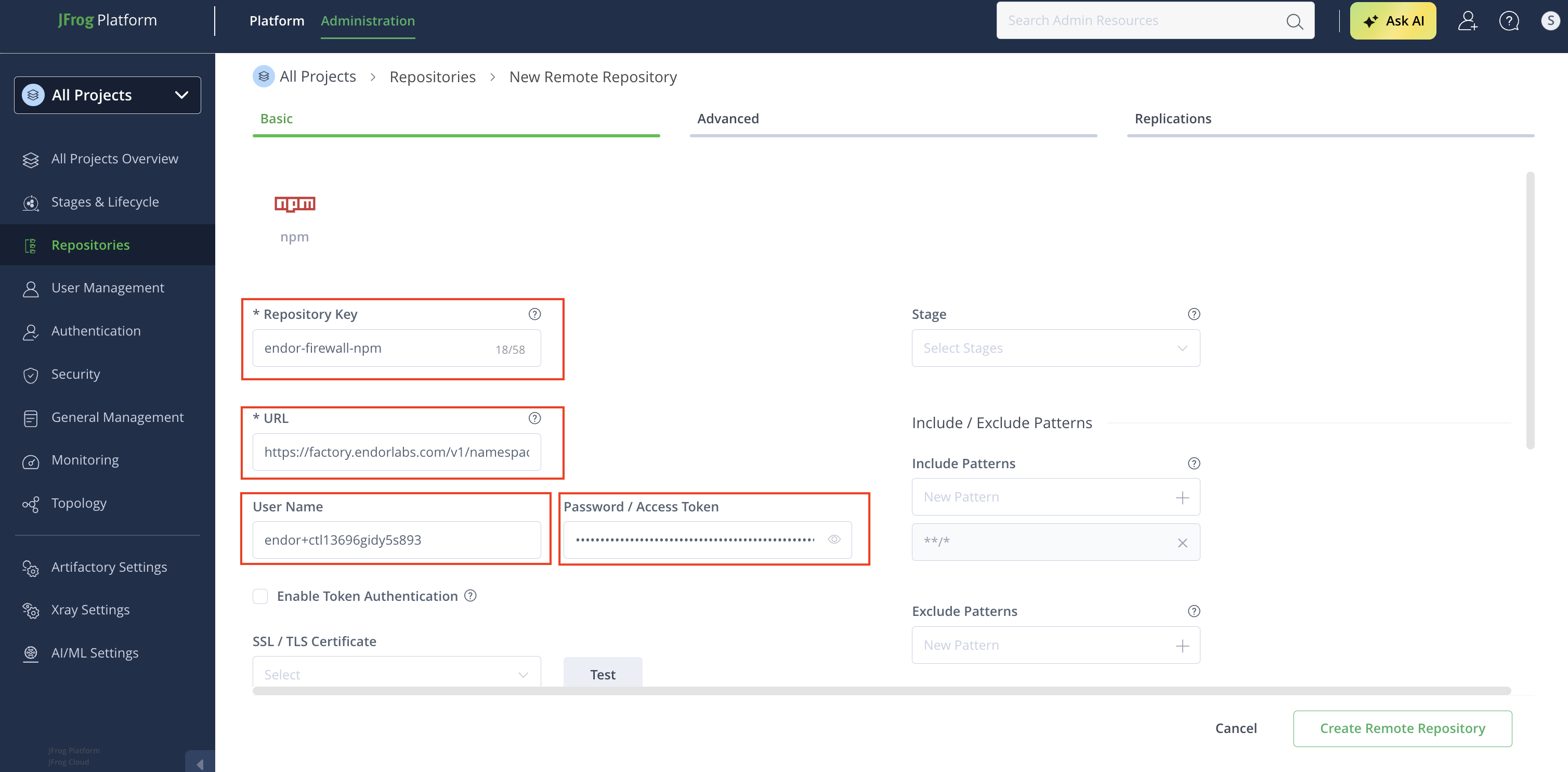
Enter a Repository Key, for example
endor-firewall-npm. -
Enter the repository URL:
https://factory.endorlabs.com/v1/namespaces/<namespace>/firewall/npm/. Replace<namespace>with your Endor Labs namespace. -
Enter the User Name and Password you saved when creating the API key.
-
Click Create Remote Repository.
Configure JFrog Artifactory for a PyPI remote repository
-
Select Administration > Repositories from the left sidebar.
-
Click Create a Repository and select Remote.
-
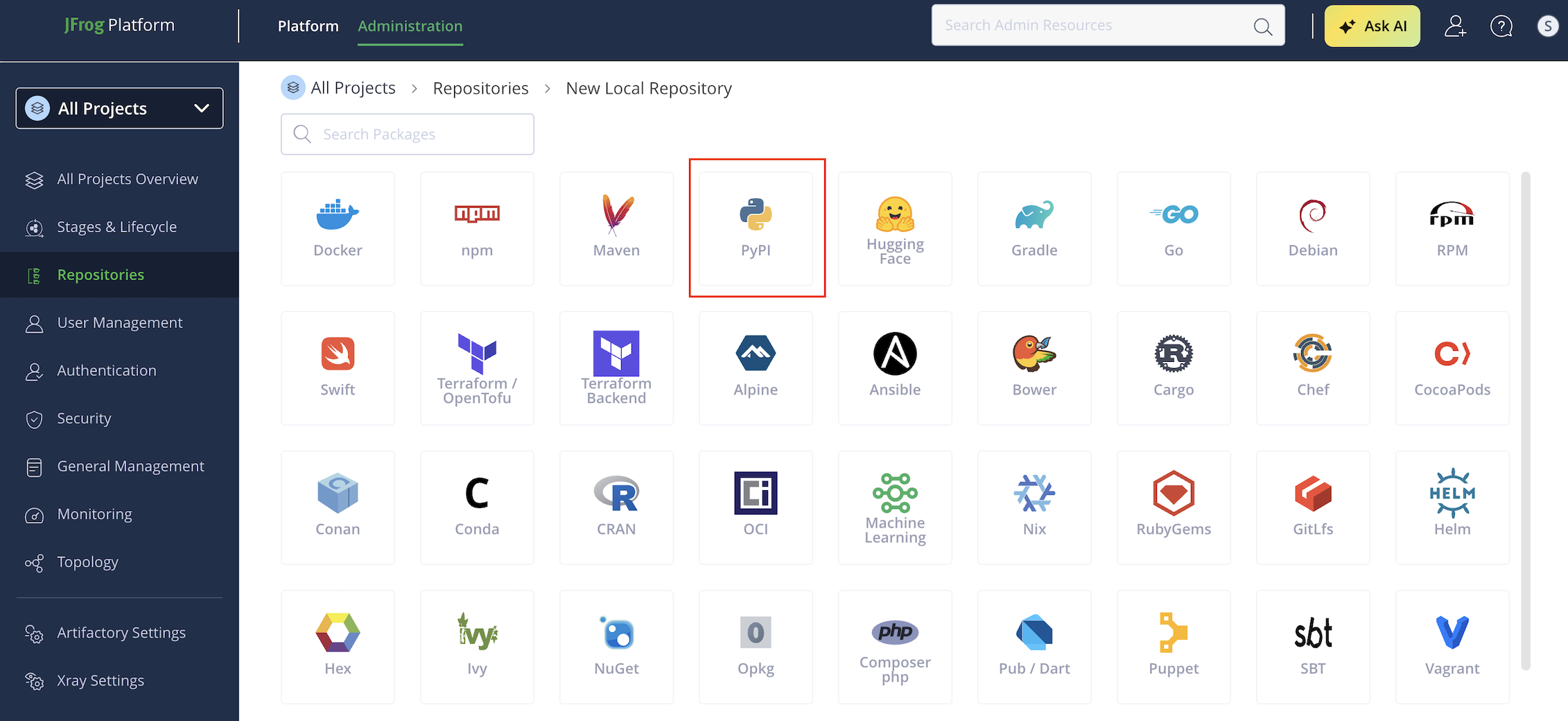
Select PyPI as the package type.
-
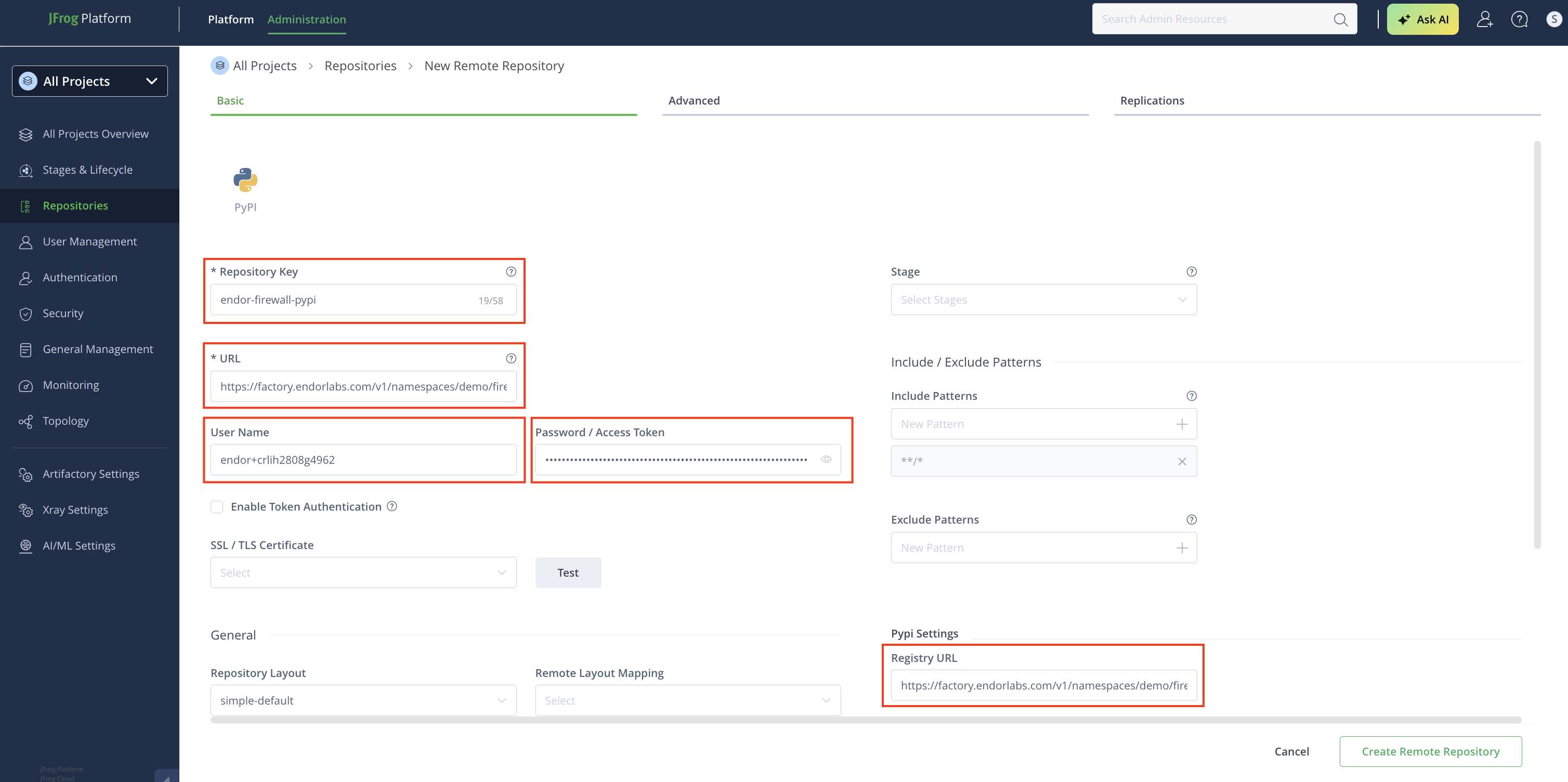
Enter a Repository Key, for example
endor-firewall-pypi. -
Enter the repository URL:
https://factory.endorlabs.com/v1/namespaces/<namespace>/firewall/pypi/. Replace<namespace>with your Endor Labs namespace. -
Enter the User Name and Password you saved when creating the API key.
-
In PyPI Settings, set Registry URL to the same URL you entered in step 6.
-
Click Create Remote Repository.
Local setup for developers
Update your package manager to use Artifactory as its source, routing all installs through the Package Firewall instead of the public registry. Once you create the Artifactory remote:
-
Navigate to Administration > Repositories.
-
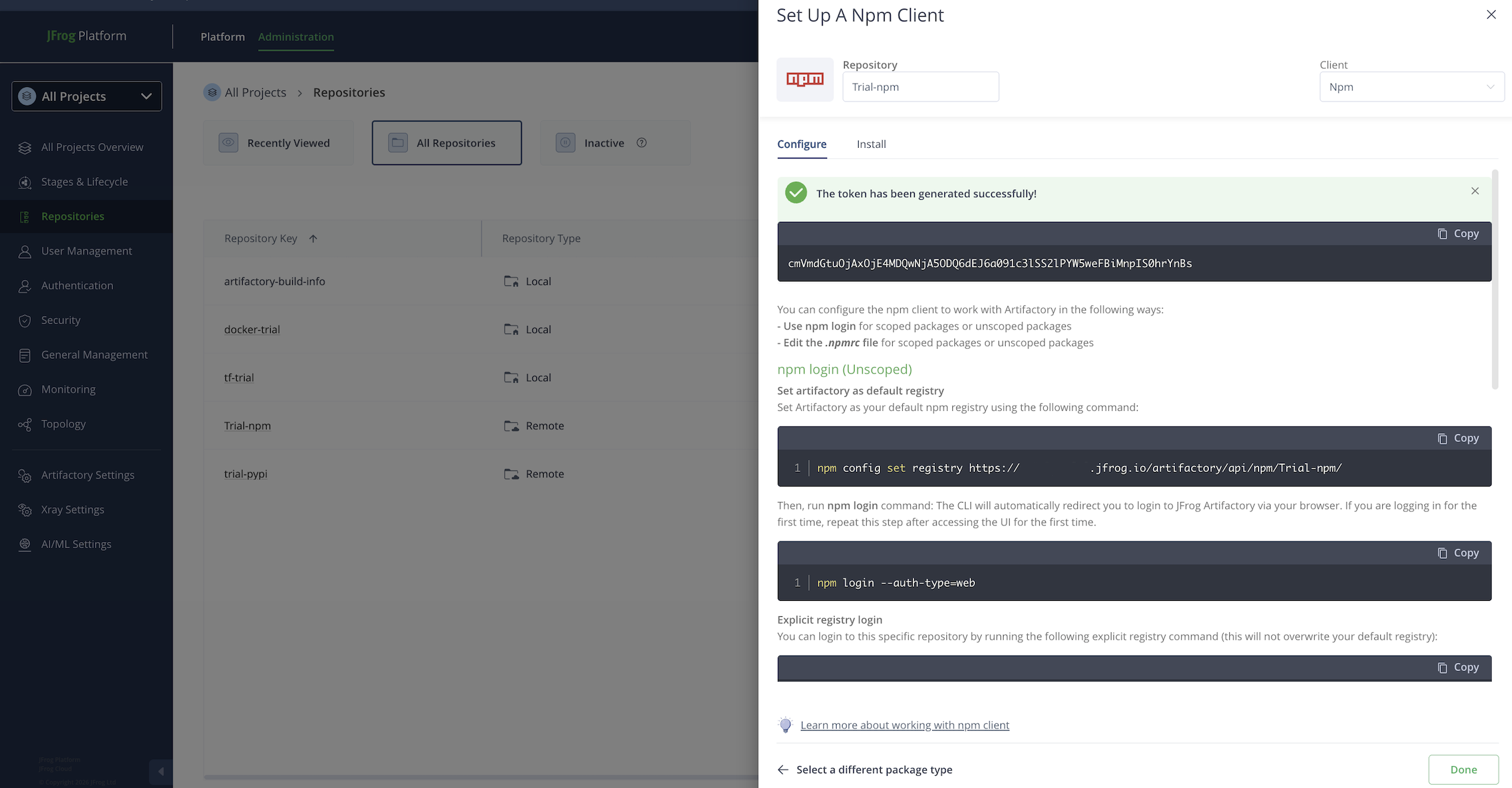
Click the three vertical dots next to the repository you configured and select Set Me Up.
-
Enter Your JFrog account password if prompted.
-
Click Generate Token & Create Instructions.
-
Follow the instructions to configure your local machine,
.npmrcorpip.conf, based on your package type. Refer to JFrog Artifactory documentation for more information. -
Run the following command to verify that your local registry is pointing to the Artifactory remote. Ensure the output matches the Artifactory remote URL you configured.
- For npm packages, run
npm config get registry. - For PyPI packages, run
pip3 config list | grep index-url.
- For npm packages, run
Verify that the Package Firewall is blocking malware
After configuring .npmrc or pip.conf, try installing a package that Endor Labs has classified as malware. The Package Firewall blocks the installation and Artifactory returns a 404.
The following are examples of packages classified as malware in the Endor Labs.
npm
Run the following command to test the Package Firewall with npm.
npm install endor-firewall-test@1.0.0
When the Package Firewall blocks the package, the output looks similar to the following. The E404 error code and 404 Not Found response confirm that the package was blocked.
npm error code E404
npm error 404 Not Found - GET https://johndoe.jfrog.io/artifactory/api/npm/johndoe/endor-firewall-test/-/endor-firewall-test-1.0.0.tgz
npm error 404
npm error 404  The requested resource 'endor-firewall-test@https://johndoe.jfrog.io/artifactory/api/npm/johndoe/endor-firewall-test/-/endor-firewall-test-1.0.0.tgz' could not be found or you do not have permission to access it.
npm error 404
npm error 404 Note that you can also install from a
npm error 404 tarball, folder, http url, or git url.
pip
Run the following command to test the Package Firewall with pip.
pip install endor-firewall-test==1.0.0
When the Package Firewall blocks the package, the output looks similar to the following. The E404 error code and 404 Not Found response confirm that the package was blocked.
Defaulting to user installation because normal site-packages is not writeable
Looking in indexes: https://johndoe.jfrog.io/artifactory/api/pypi/johndoe/simple
Collecting endor-firewall-test==1.0.0
ERROR: HTTP error 404 while getting https://johndoe.jfrog.io/artifactory/api/pypi/johndoe/packages/packages/61/05/6e99035fec6c7e407fffc052a0060495f6a2fcae2143db3239c7399d5b6e/endor_firewall_test-1.0.0-py3-none-any.whl#sha256=4df734939186708c595e72e50f5d31296d2ea9e54d5a0afc9e69d4e7d6f0d4b9 (from https://johndoe.jfrog.io/artifactory/api/pypi/johndoe/simple/endor-firewall-test/) (requires-python:>=3.7)

ERROR: Could not install requirement endor-firewall-test==1.0.0 from https://johndoe.io/artifactory/api/pypi/johndoe/packages/packages/61/05/6e99035fec6c7e407fffc052a0060495f6a2fcae2143db3239c7399d5b6e/endor_firewall_test-1.0.0-py3-none-any.whl#sha256=4df734939186708c595e72e50f5d31296d2ea9e54d5a0afc9e69d4e7d6f0d4b9 because of HTTP error 404 Client Error:  for url: https://johndoe.jfrog.io/artifactory/api/pypi/johndoe/packages/packages/61/05/6e99035fec6c7e407fffc052a0060495f6a2fcae2143db3239c7399d5b6e/endor_firewall_test-1.0.0-py3-none-any.whl for URL https://johndoe.jfrog.io/artifactory/api/pypi/johndoe/packages/packages/61/05/6e99035fec6c7e407fffc052a0060495f6a2fcae2143db3239c7399d5b6e/endor_firewall_test-1.0.0-py3-none-any.whl#sha256=4df734939186708c595e72e50f5d31296d2ea9e54d5a0afc9e69d4e7d6f0d4b9 (from https://johndoe.jfrog.io/artifactory/api/pypi/johndoe/simple/endor-firewall-test/) (requires-python:>=3.7)
View Package Firewall logs
To view Package Firewall logs in the Endor Labs user interface:
-
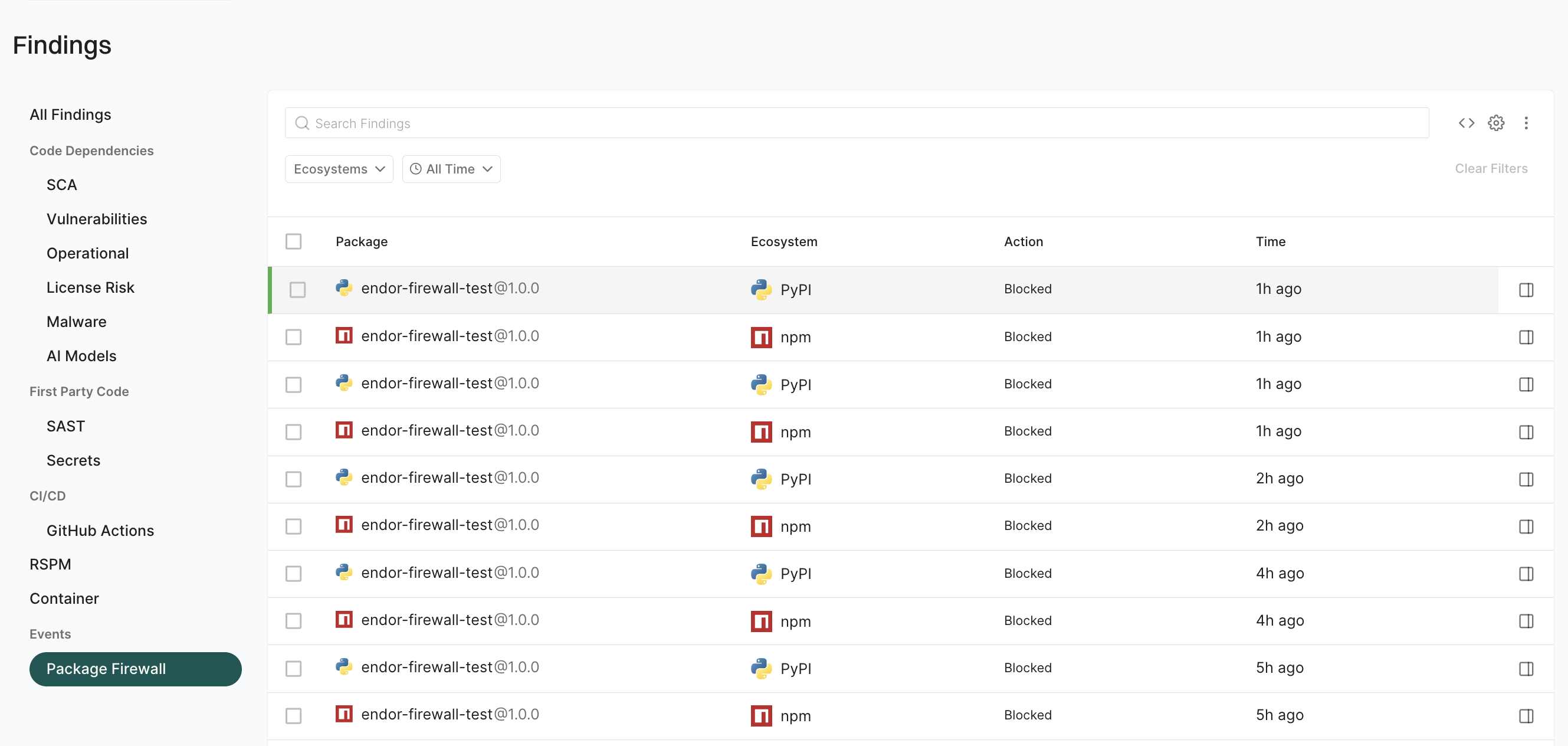
Sign in to Endor Labs and select Findings from the left sidebar.
-
Select Package Firewall under Events.
-
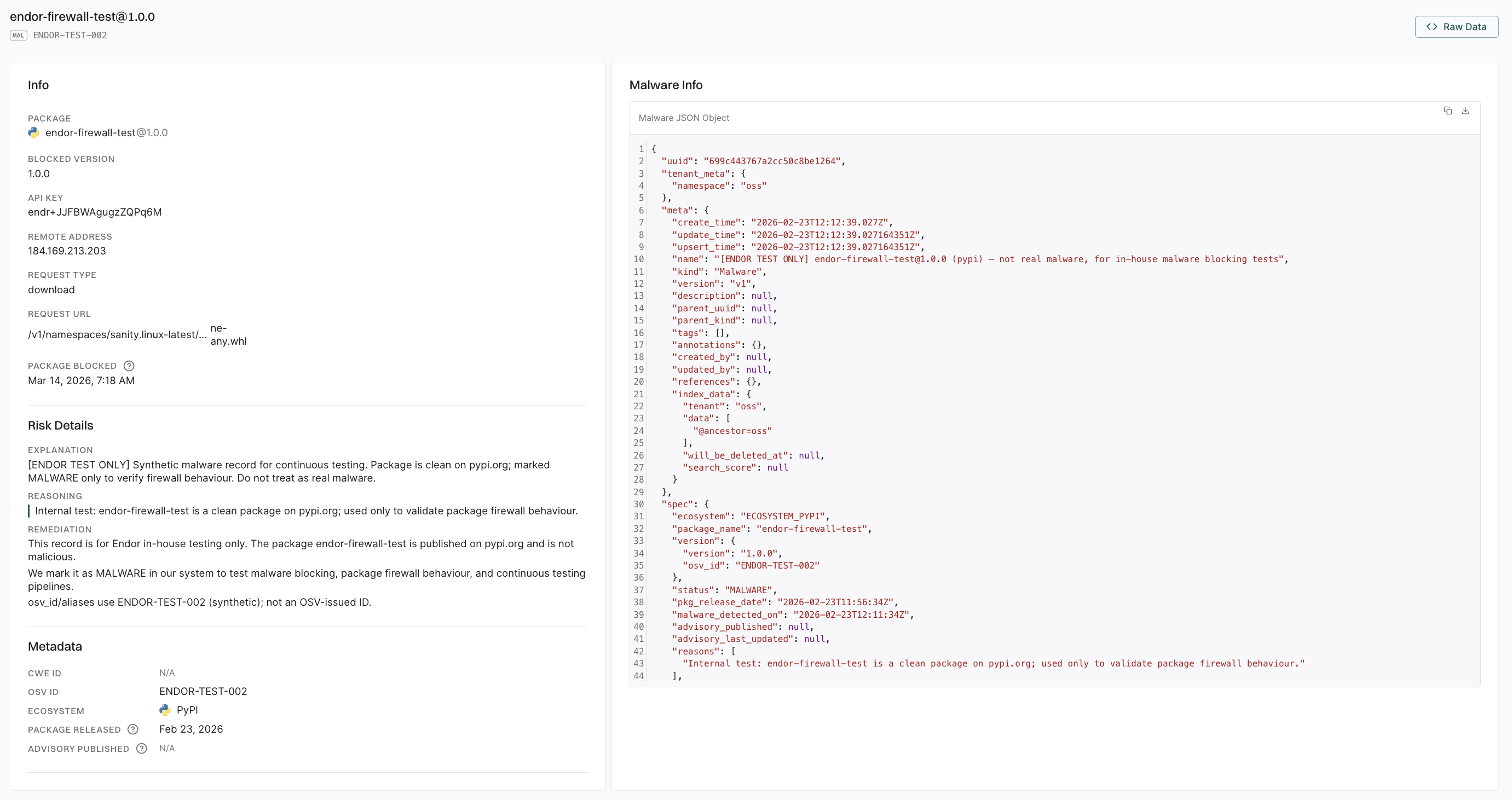
Select a blocked package to view the following details.
- Info: Contains the package name, blocked version, API key, remote address, request type, request URL, and the timestamp when the package was blocked.
- Risk Details: Explanation of why the package was blocked and remediation guidance.
- Metadata: Displays the CWE ID, OSV ID, ecosystem, package release date, and advisory published date.
- Malware Info: Provides the full malware detection record in raw JSON format.
Query Package Firewall logs
The Package Firewall Logs record blocked package requests as events. You can view them by querying the endorctl API.
-
To list all Package Firewall logs in your namespace, run the following command. Replace
<namespace>with your namespace.endorctl api list -r PackageFirewallLog -n <namespace> -
To list logs only for a specific ecosystem, add a filter.
endorctl api list -r PackageFirewallLog -n <namespace> --filter 'spec.ecosystem==<ecosystem_variable>'Replace:
<ecosystem_variable>withECOSYSTEM_NPMfor npm andECOSYSTEM_PYPIfor PyPI.<namespace>with your namespace.
-
To list logs for a specific package in an ecosystem, use a filter with
spec.ecosystem,spec.package_name,spec.version.endorctl api list -r PackageFirewallLog -n <namespace> --filter 'spec.ecosystem==<ecosystem_variable> and spec.package_name=="<package_name>" and spec.version=="<package_version>"'Replace:
<namespace>with your namespace.<ecosystem_variable>withECOSYSTEM_NPMfor npm andECOSYSTEM_PYPIfor PyPI.<package_name>with the package name you want to query.<package_version>with the package version you want to query.
The API key created with SYSTEM_ROLE_PACKAGE_FIREWALL is used only by Artifactory to route traffic through the Package Firewall. It does not grant access to the Package Firewall Log API.
To query logs, create an API key with at least the Read-only role. For more information about roles and permissions. See authorization roles to learn about the different roles Endor Labs offers.
Troubleshooting and FAQ
Does the Package Firewall block installation of all versions of a malicious package?
How does the Package Firewall handle transitive dependencies?
Does the Package Firewall slow down package installations?
What if Artifactory has already cached a package that is declared malicious later?
How do I troubleshoot connection issues?
- Verify that the Package Firewall URL in Artifactory is correct.
- Ensure network connectivity from Artifactory to the Package Firewall.
- Ensure the firewall rules allow outbound connections from Artifactory.
How do I troubleshoot authentication issues?
- Verify the API key and secret are correct and that the key has the SYSTEM_ROLE_PACKAGE_FIREWALL role.
- Ensure that the credentials are in the format Artifactory expects.
- Check the Artifactory logs for authentication errors.
How do I troubleshoot cache issues?
- Verify that Artifactory has sufficient storage for the cache.
- Set cache expiration to short durations so that more requests hit the Package Firewall.
- Check the cache hit and miss rates. Clear the cache if you need to test with a fresh request.