This is the multi-page printable view of this section. Click here to print.

Return to the regular view of this page.

Data exporters

Learn how to export findings and scan data from Endor Labs to external storage and security platforms using the export framework.

This is the multi-page printable view of this section. Click here to print.

Return to the regular view of this page.

Learn how to export findings and scan data from Endor Labs to external storage and security platforms using the export framework.

Endor Labs provides an export framework that enables you to export scan data to external platforms for archival, compliance, or integration with other security tools. You can configure exporters to automatically send data to supported destinations after each scan.

The export framework supports the following destinations.

Destination Description
AWS S3 Export data to an Amazon S3 storage bucket for archival or integration with data analytics tools.
GitHub Advanced Security Export findings in SARIF format to GitHub Advanced Security for viewing in the GitHub security dashboard.

You can configure exporters to export different types of data:

Data Type Description Message Type Exporters
Findings Security findings from scans including vulnerabilities, secrets, and SAST issues MESSAGE_TYPE_FINDING S3, GHAS
Action policy findings Findings that match your configured action policies (blocked or warning) MESSAGE_TYPE_ADMISSION_POLICY_FINDING GHAS
Format Description Format Type Exporters
JSON Export data in JSON format for flexibility and compatibility with various tools MESSAGE_EXPORT_FORMAT_JSON S3
SARIF Export findings in Static Analysis Results Interchange Format for security tools integration MESSAGE_EXPORT_FORMAT_SARIF S3, GHAS

Export findings to GitHub Advanced Security

You can export the findings generated by Endor Labs to GitHub Advanced Security so that you can view the findings in the GitHub. Endor Labs exports the findings in the SARIF format and uploads them to GitHub. You can view the findings under Security > Vulnerability Alerts > Code Scanning in GitHub.

Warning
GitHub have several limitations for SARIF files, so you may not be able to experience the full benefits on Endor Labs. For example, GitHub limits the number of results in a SARIF file. It allows a maximum of 25000 results per file but displays the first 5000 results ranked by severity. Refer to GitHub SARIF support for code scanning for the complete list of limitations with respect to SARIF files in GitHub Advanced Security.

Ensure that you meet the following prerequisites before exporting findings to GitHub Advanced Security:

GHAS SARIF exporter allows you to export the findings generated by Endor Labs in the SARIF format. See Understanding SARIF files for more information on the SARIF format and Endor-specific extensions.

You can create a GHAS SARIF exporter using the Endor Labs API.

Run the following command to create a GHAS SARIF exporter.

endorctl api create -n <namespace> -r Exporter -d '{
  "meta": {
    "name": "<exporter-name>"
  },
  "tenant_meta": {
    "namespace": "<namespace>"
  },
  "spec": {
    "exporter_type": "EXPORTER_TYPE_GHAS",
    "message_type_configs": [
      {
        "message_type": "MESSAGE_TYPE_FINDING",
        "message_export_format": "MESSAGE_EXPORT_FORMAT_SARIF"
      }
    ]
  },
  "propagate": true
}'

For example, to create a GHAS SARIF exporter named ghas-exporter in the namespace doe.deer, run the following command.

endorctl api create -n doe.deer -r Exporter -d '{
  "meta": {
    "name": "ghas-exporter"
  },
  "tenant_meta": {
    "namespace": "doe.deer"
  },
  "spec": {
    "exporter_type": "EXPORTER_TYPE_GHAS",
    "message_type_configs": [
      {
        "message_type": "MESSAGE_TYPE_FINDING",
        "message_export_format": "MESSAGE_EXPORT_FORMAT_SARIF"
      }
    ]
  },
  "propagate": true
}'

After creating the exporter, associate it with your scan profile. You can also set the scan profile as the default for your namespace so all projects use it automatically. See Scan profiles for more information.

  1. Select Settings from the left sidebar.
  2. Select Scan Profiles.
  3. Select the scan profile you want to configure and click Edit Scan Profile.
  4. Select your exporter under Exporters and click Save Scan Profile.

Associate your project with a scan profile to enable automatic export of scan data.

  1. Select Projects from the left sidebar and select the project you want to configure.
  2. Select Settings and select the scan profile you want to use under Scan Profile.

After the configuration is complete, your subsequent scans will export the findings in the SARIF format and upload them to GitHub. You can use the rescan ability to scan the project immediately instead of waiting for the next scheduled scan. See Rescan projects for more information.

If you have enabled pull request scans in your GitHub App, the GHAS SARIF exporter exports the findings for each pull request.

  1. Navigate to your GitHub repository.

  2. Select Security.

  3. Select Code scanning under Vulnerability Alerts.

  4. Select endorctl from the Tool filter to view findings from Endor Labs.
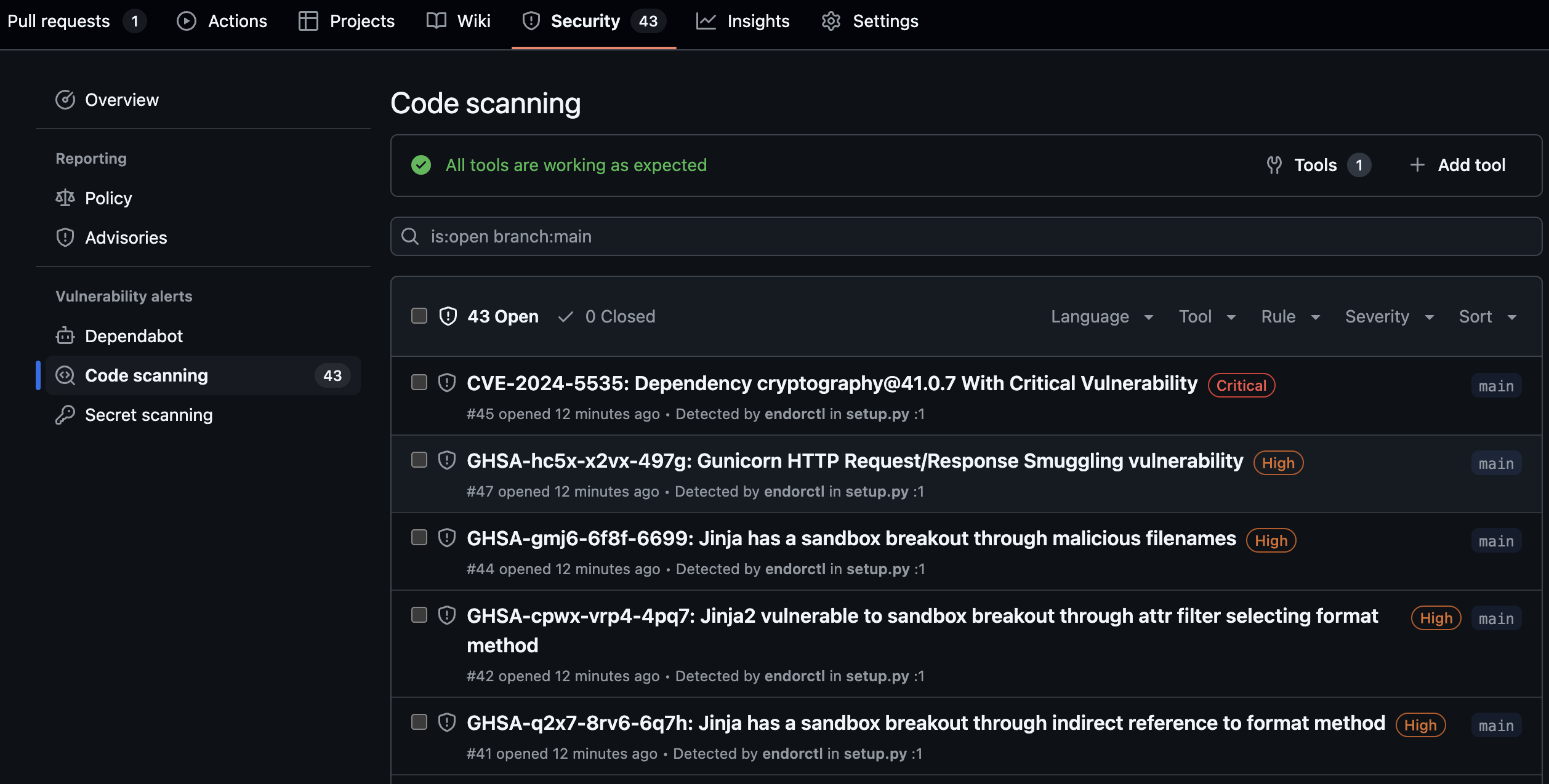
    View findings in GitHub

    You can use the search bar to filter the findings. You can also view findings for a specific branch and other filter criteria. You can also view the findings specific to a pull request if you have enabled pull request scans. You can filter the findings by the pull request number and view findings associated with the pull request. You can select a finding and view the commit history behind the finding.
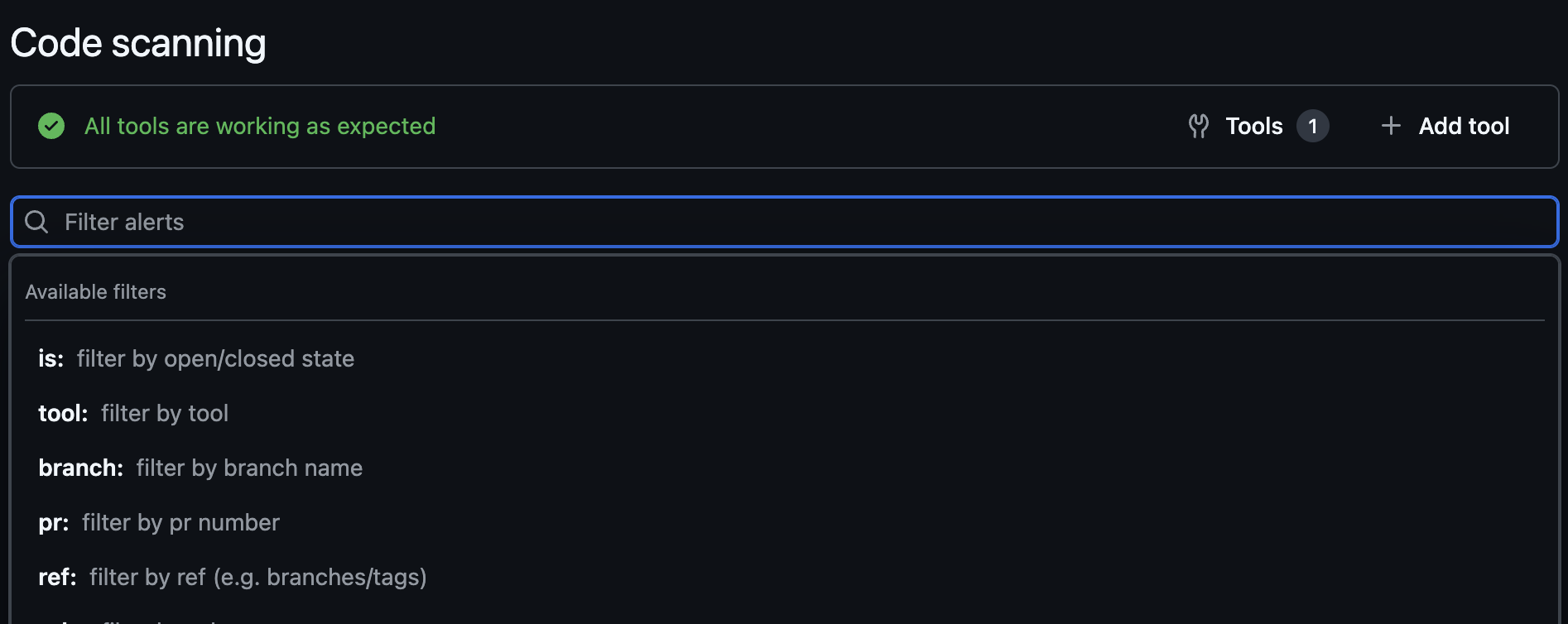
    Filter findings in GitHub

  5. Select Campaigns to view and create security campaigns that coordinate remediation efforts across multiple repositories. See GitHub security campaign for more information.

When findings are exported to GHAS, Endor Labs includes finding tags and categories as searchable tags in the SARIF output. These tags appear in the GitHub code scanning interface, and you can filter and identify specific types of findings.

Endor Labs exports the following types of tags to GHAS:

  • Finding tags: System-defined attributes such as REACHABLE_FUNCTION, FIX_AVAILABLE, EXPLOITED, DIRECT, TRANSITIVE, and others. See Finding tags for the complete list.
  • Finding categories: Categories such as SCA, SAST, VULNERABILITY, SECRETS, CONTAINER, CICD, GHACTIONS, LICENSE_RISK, MALWARE, OPERATIONAL, SCPM, SECURITY, SUPPLY_CHAIN, and AI_MODELS. See Finding categories for the complete list.

You can use the search bar to filter findings by tags. Use the tag: prefix followed by the tag name to search for specific Endor Labs tags.

Available Filter Description
REACHABLE_FUNCTION Show findings with reachable vulnerable functions
FIX_AVAILABLE Show findings where a fix is available
EXPLOITED Show findings for actively exploited vulnerabilities (KEV)
DIRECT Show findings in direct dependencies
TRANSITIVE Show findings in transitive dependencies
CI_BLOCKER Show findings marked as blockers by action policies
SCA Show Software Composition Analysis findings
SAST Show SAST findings
SECRETS Show exposed secrets findings
VULNERABILITY Show vulnerability findings
CONTAINER Show container findings
CICD Show CI/CD pipeline findings
GHACTIONS Show GitHub Actions findings

You can combine multiple filters to narrow down your results. For example, to find reachable vulnerabilities with available fixes:

tag:REACHABLE_FUNCTION tag:FIX_AVAILABLE
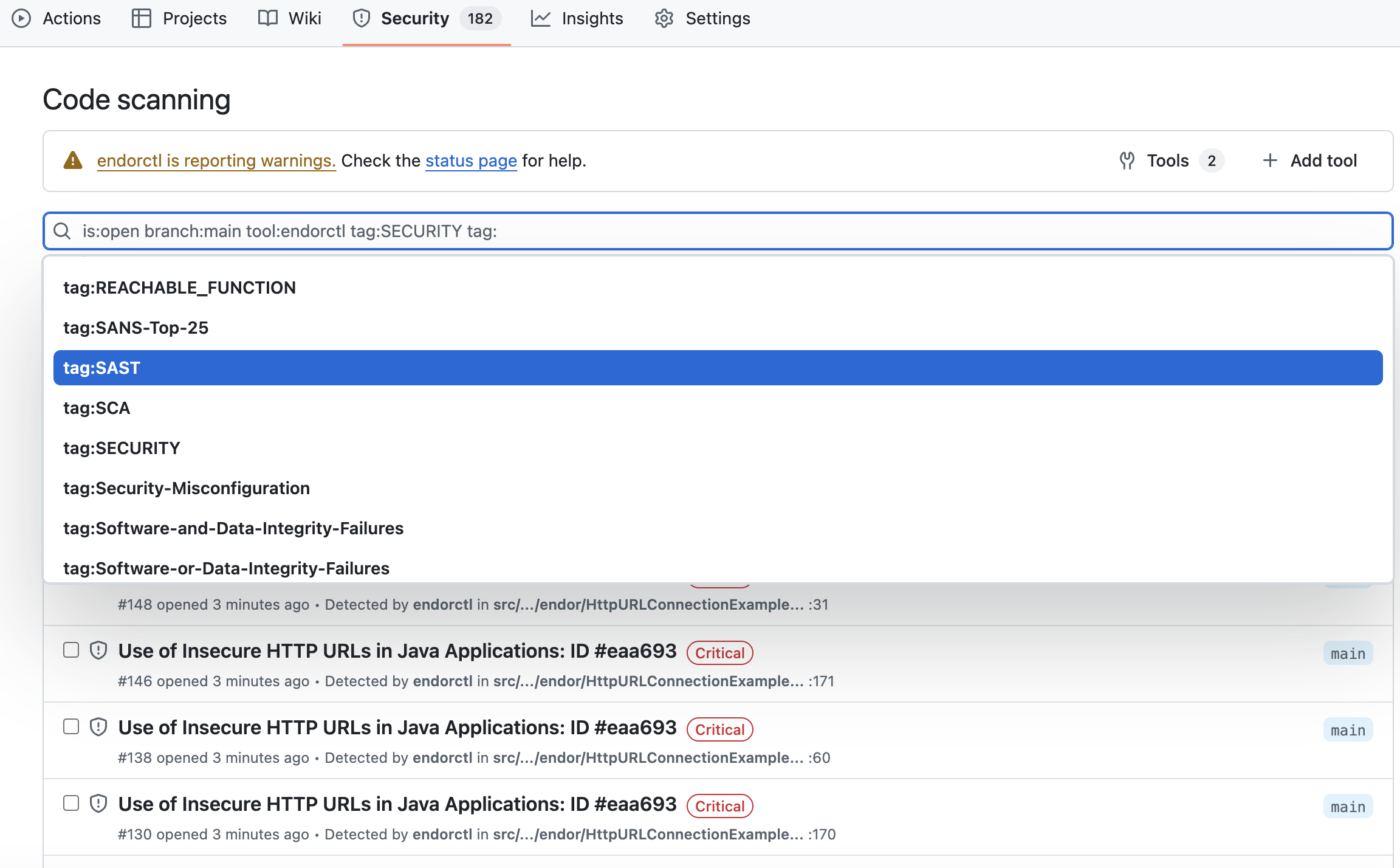
Filter by tags in GitHub

You can control which findings are exported to GHAS by using action policies. Only findings from projects within the scope of your configured action policies will be exported to GitHub Advanced Security.

To filter findings using action policies:

  1. Create an action policy that defines the criteria for findings you want to export, or use an existing action policy.
  2. Assign specific projects to the scope of the action policy you want to use.
  3. Run the following command to create a GHAS SARIF exporter that exports only findings from projects in the scope of your action policies.
Note
Use MESSAGE_TYPE_ADMISSION_POLICY_FINDING as the message_type to filter findings based on your action policies.
endorctl api create -n <namespace> -r Exporter -d '{
   "meta": {
     "name": "<exporter-name>"
   },
   "tenant_meta": {
     "namespace": "<namespace>"
   },
   "spec": {
     "exporter_type": "EXPORTER_TYPE_GHAS",
     "message_type_configs": [
       {
         "message_type": "MESSAGE_TYPE_ADMISSION_POLICY_FINDING",
         "message_export_format": "MESSAGE_EXPORT_FORMAT_SARIF"
       }
     ]
   },
   "propagate": true
 }'

You can list, update, and delete GHAS exporters using the Endor Labs API.

List exporters

Run the following command to list all exporters in your namespace:

endorctl api list --namespace=<namespace> --resource=Exporter
Update an exporter

Run the following command to update an existing exporter. Use the --field-mask parameter to specify the fields to update.

endorctl api update \
  --namespace=<namespace> \
  --resource=Exporter \
  --name=<exporter-name> \
  --field-mask "spec.message_type_configs" \
  --data '{
    "spec": {
      "message_type_configs": [
        {
          "message_type": "MESSAGE_TYPE_ADMISSION_POLICY_FINDING",
          "message_export_format": "MESSAGE_EXPORT_FORMAT_SARIF"
        }
      ]
    }
  }'
Delete an exporter
Note
You must disassociate the exporter from any linked scan profiles before deletion.

Run the following command to delete an exporter:

endorctl api delete --namespace=<namespace> --resource=Exporter --name=<exporter-name>
Export findings to S3

Export scan data generated by Endor Labs to an AWS S3 storage bucket. This enables long-term data retention for compliance requirements, integration with security information and event management (SIEM) systems, and custom analytics workflows. The export framework supports exporting findings in JSON or SARIF format, allowing flexible integration with your existing toolchain.

Amazon S3 is an object storage service provided by Amazon Web Services (AWS). It offers high durability, availability, and scalability for storing and retrieving any amount of data. S3 integrates with other AWS services and third-party tools, making it ideal for data archival, backup, and analytics workflows.

Ensure that you meet the following prerequisites before exporting data to S3:

Endor Labs uses OIDC federation to assume an IAM role in your AWS account to access the S3 bucket. Complete the following steps in the AWS Management Console to configure access.

An S3 bucket is a container for storing objects in Amazon S3. Each bucket has a globally unique name and is created in a specific AWS region.

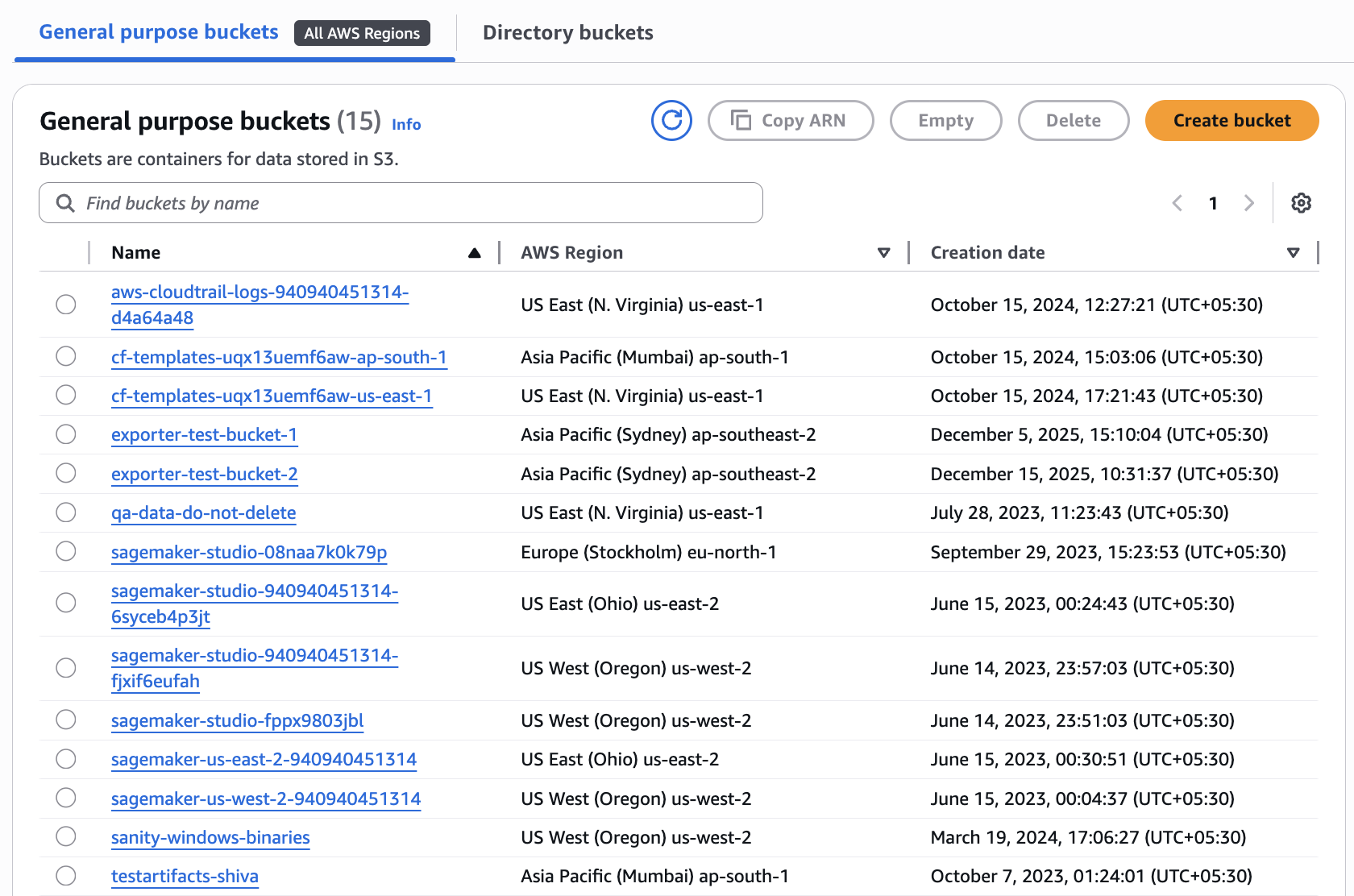
You can create a new general purpose S3 bucket or reuse an existing one to store the exported data. Disable ACLs on the bucket to ensure all access is managed through IAM policies and bucket policies, preventing unintended public access. Refer to Creating a bucket in the Amazon S3 documentation for instructions.

S3 buckets

You can configure S3 lifecycle rules to automatically delete exported data after a specified retention period. Exported objects do not expire unless you configure lifecycle rules.

  1. In the AWS management console, navigate to Amazon S3 > Buckets.
  2. Select your bucket.
  3. Select Management and click Create lifecycle rule.
  4. Enter a Lifecycle rule name, for example, endor-exports-expiry.
  5. Under Filter type, select Limit the scope of this rule using one or more filters and enter endor/ as the prefix to apply the rule only to exported data.
  6. Under Lifecycle rule actions, select Expire current versions of objects.
  7. Under Expire current versions of objects, enter the number of days after which objects should be deleted.
  8. Review the rule and click Create rule.

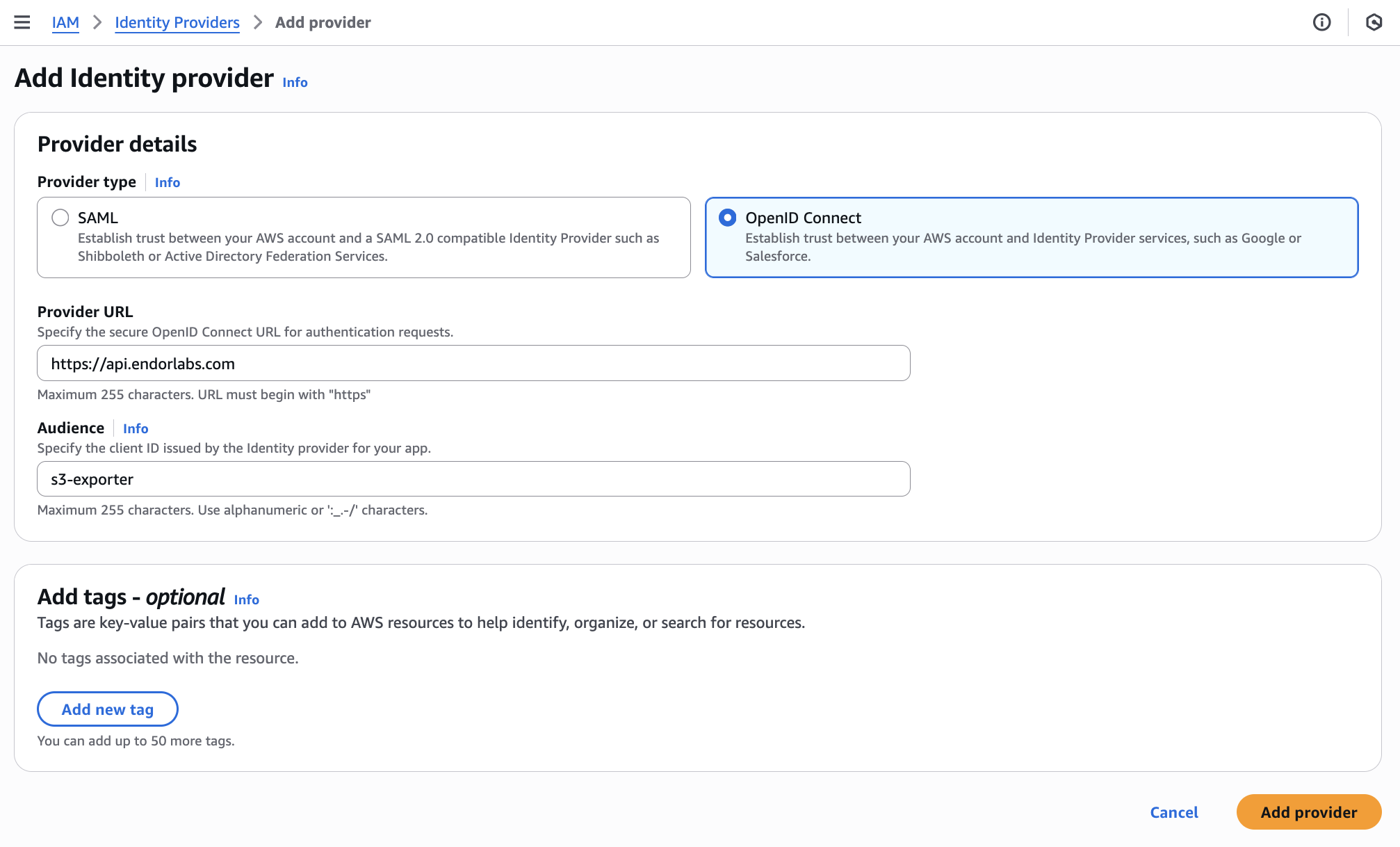
OpenID Connect (OIDC) federation allows Endor Labs to access AWS resources without requiring long-lived credentials, reducing the risk of credential exposure and simplifying secret rotation.

  1. In the AWS management console, navigate to IAM > Access Management > Identity providers.
  2. Click Add provider.
  3. Under Provider details, select OpenID Connect.
  4. For Provider URL, enter https://api.endorlabs.com.
  5. For Audience, specify a unique identifier to validate incoming OIDC tokens from Endor Labs.
  6. Optionally, add tags to help identify the provider.
  7. Click Add provider.
Create identity provider

Create an IAM role that Endor Labs can assume to write to your S3 bucket. This involves:

  1. Create a permissions policy: Define the S3 write permissions.
  2. Create an IAM role: Create a role with OIDC trust and attach the policy.
  1. In the AWS management console, navigate to IAM > Access Management > Policies.

  2. Click Create policy.

  3. Under Specify permissions, toggle the Policy editor to JSON.

  4. Enter the following policy:

    {
      "Version": "2012-10-17",
      "Statement": [
        {
          "Effect": "Allow",
          "Action": [
            "s3:PutObject",
          ],
          "Resource": "arn:aws:s3:::<your-bucket-name>/*"
        }
      ]
    }
    

    Replace <your-bucket-name> with the name of your S3 bucket.

  5. Click Next.

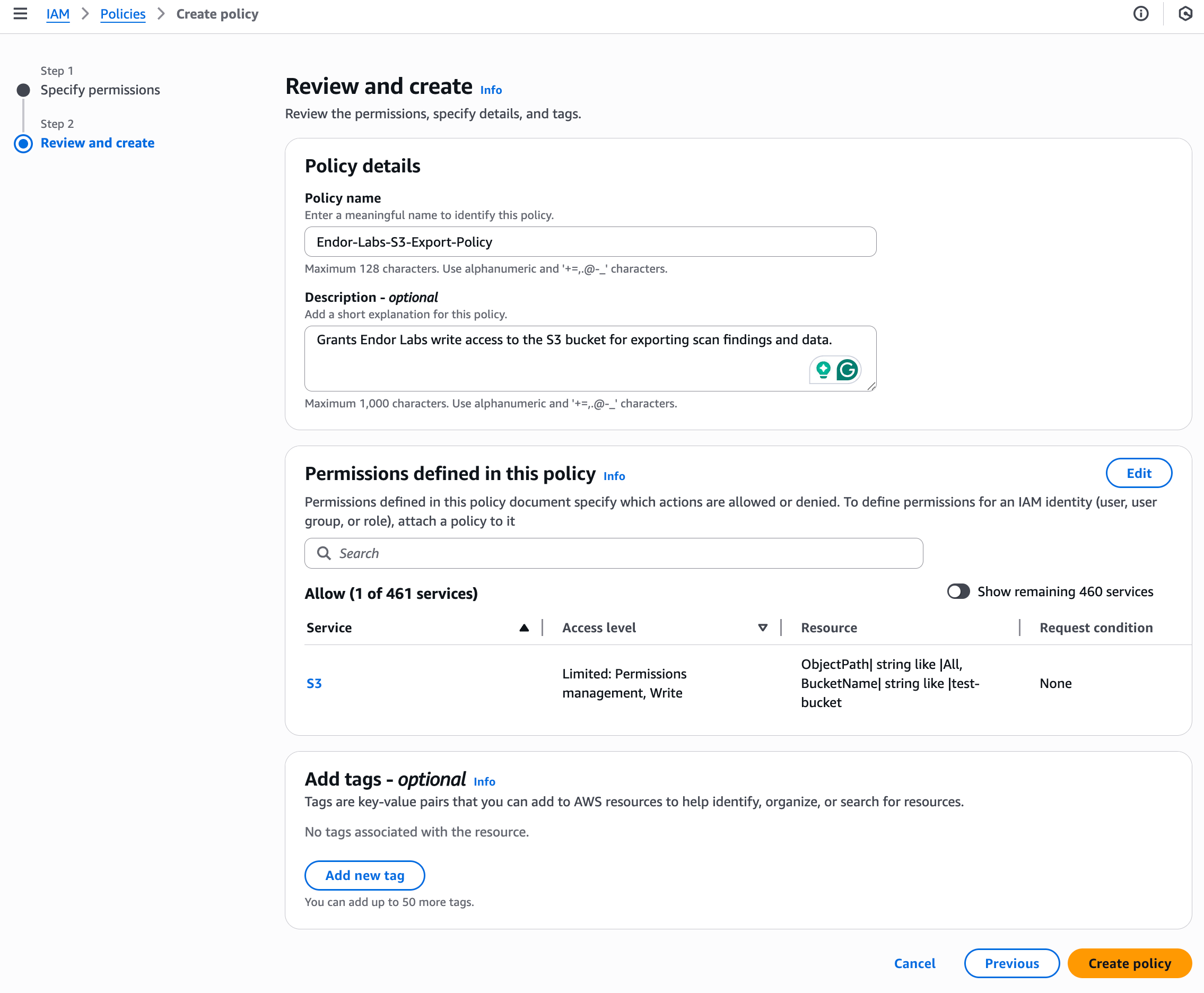
  6. Under Review and create, enter a Policy name. For example, EndorLabsS3ExportPolicy.

  7. Review the Permissions defined in this policy section to confirm that the expected Amazon S3 write actions are included.

  8. Optionally, add a description and tags to your policy.

  9. Click Create policy.

Policy permissions
  1. In the AWS management console, navigate to IAM > Access Management > Roles.
  2. Click Create role.
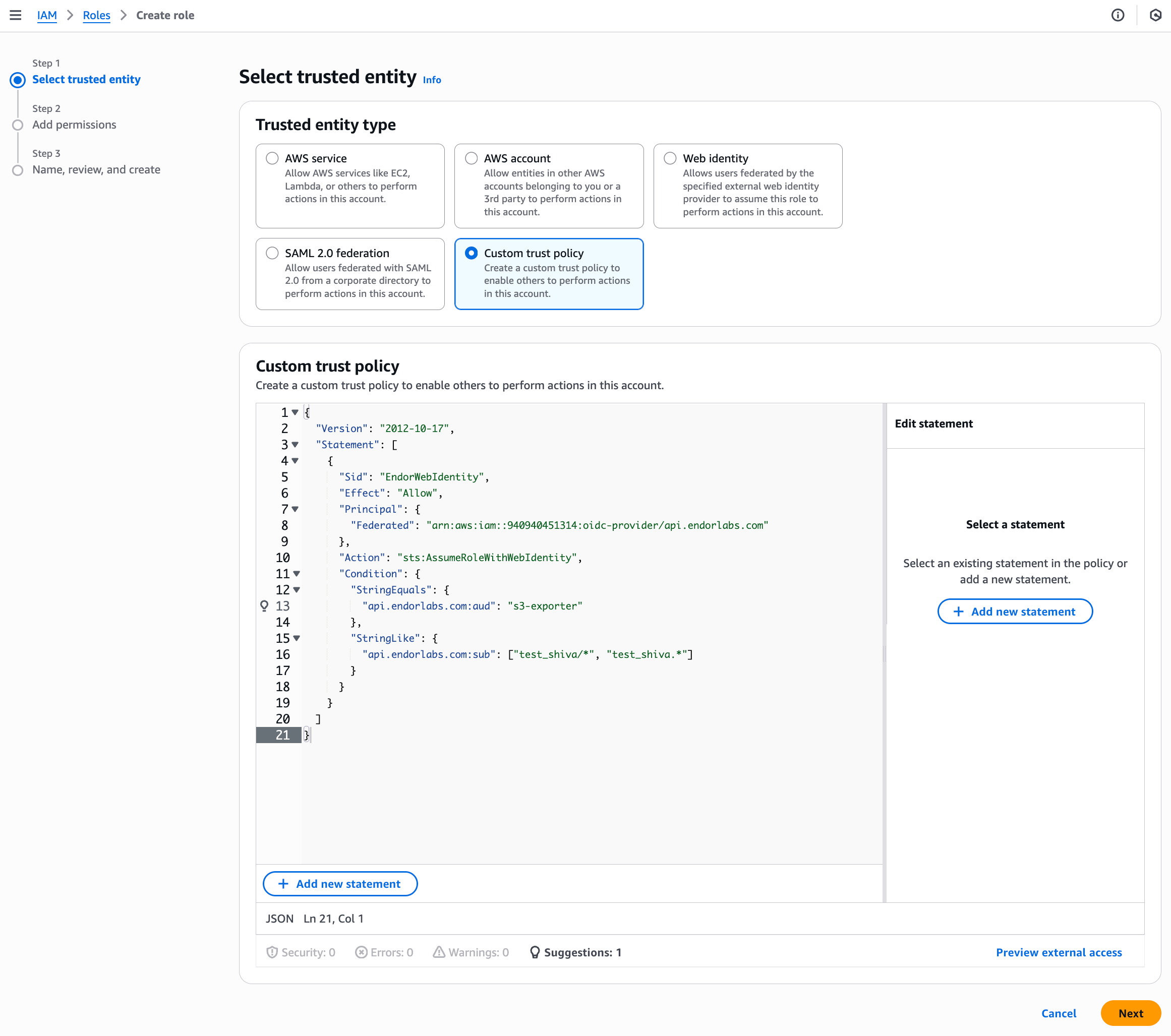
  3. Under Select trusted entity, select Custom trust policy.
  4. Enter the following trust policy:
    {
      "Version": "2012-10-17",
      "Statement": [
        {
          "Sid": "EndorWebIdentity",
          "Effect": "Allow",
          "Principal": {
            "Federated": "arn:aws:iam::<aws-account-id>:oidc-provider/api.endorlabs.com"
          },
          "Action": "sts:AssumeRoleWithWebIdentity",
          "Condition": {
            "StringEquals": {
              "api.endorlabs.com:aud": "<oidc-audience>"
            },
            "StringLike": {
              "api.endorlabs.com:sub": [ "<your-namespace>/*", "<your-namespace>.*" ]
            }
          }
        }
      ]
    }
    
    Replace the placeholders with your values:
    • <aws-account-id>: Your AWS account ID
    • <oidc-audience>: The audience value you configured in the OIDC provider
    • <your-namespace>: Your Endor Labs namespace
Create IAM role
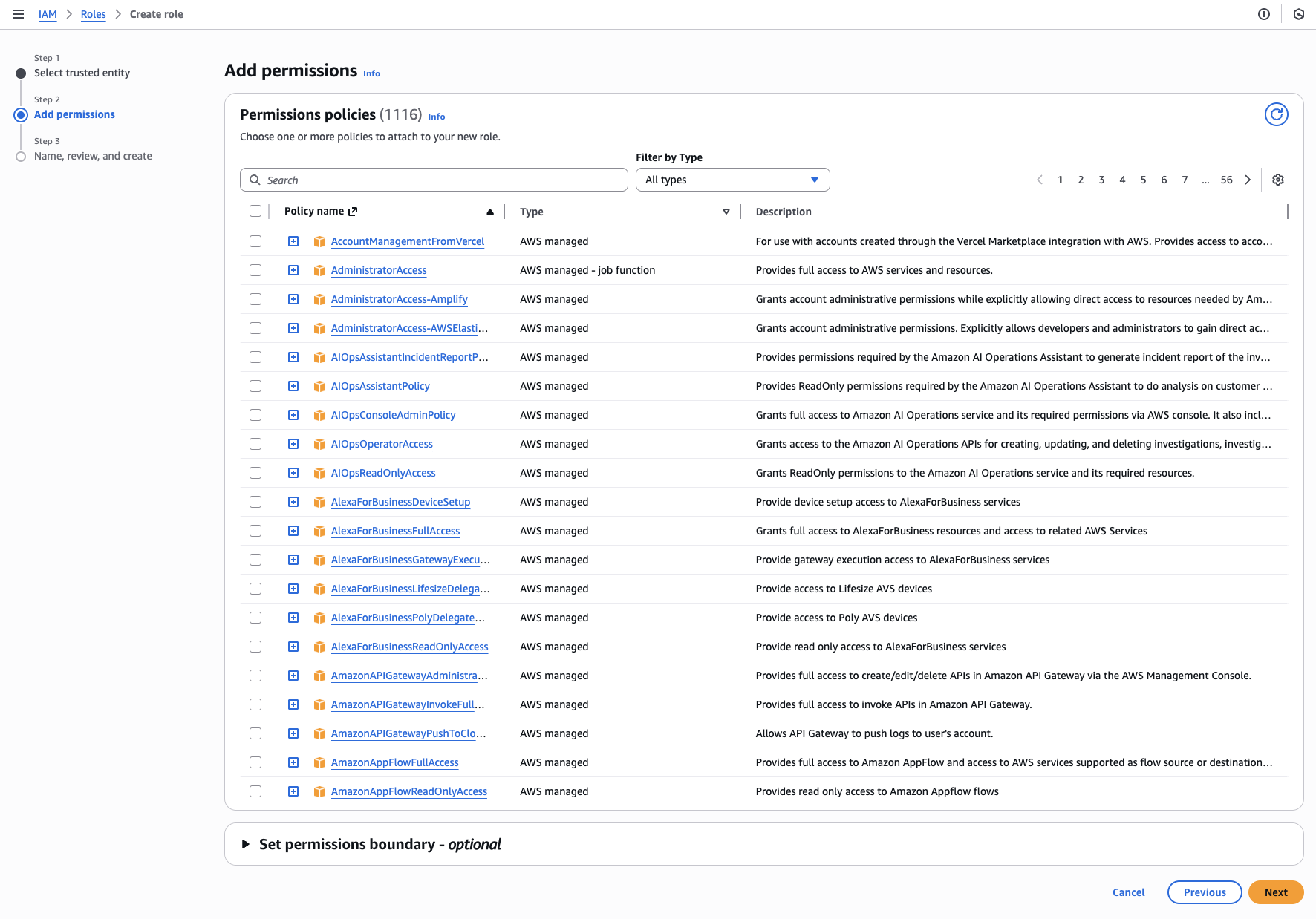
  1. Click Next.
  2. Under Add permissions, search for and select the IAM policy you created.
IAM role permissions
  1. Click Next.
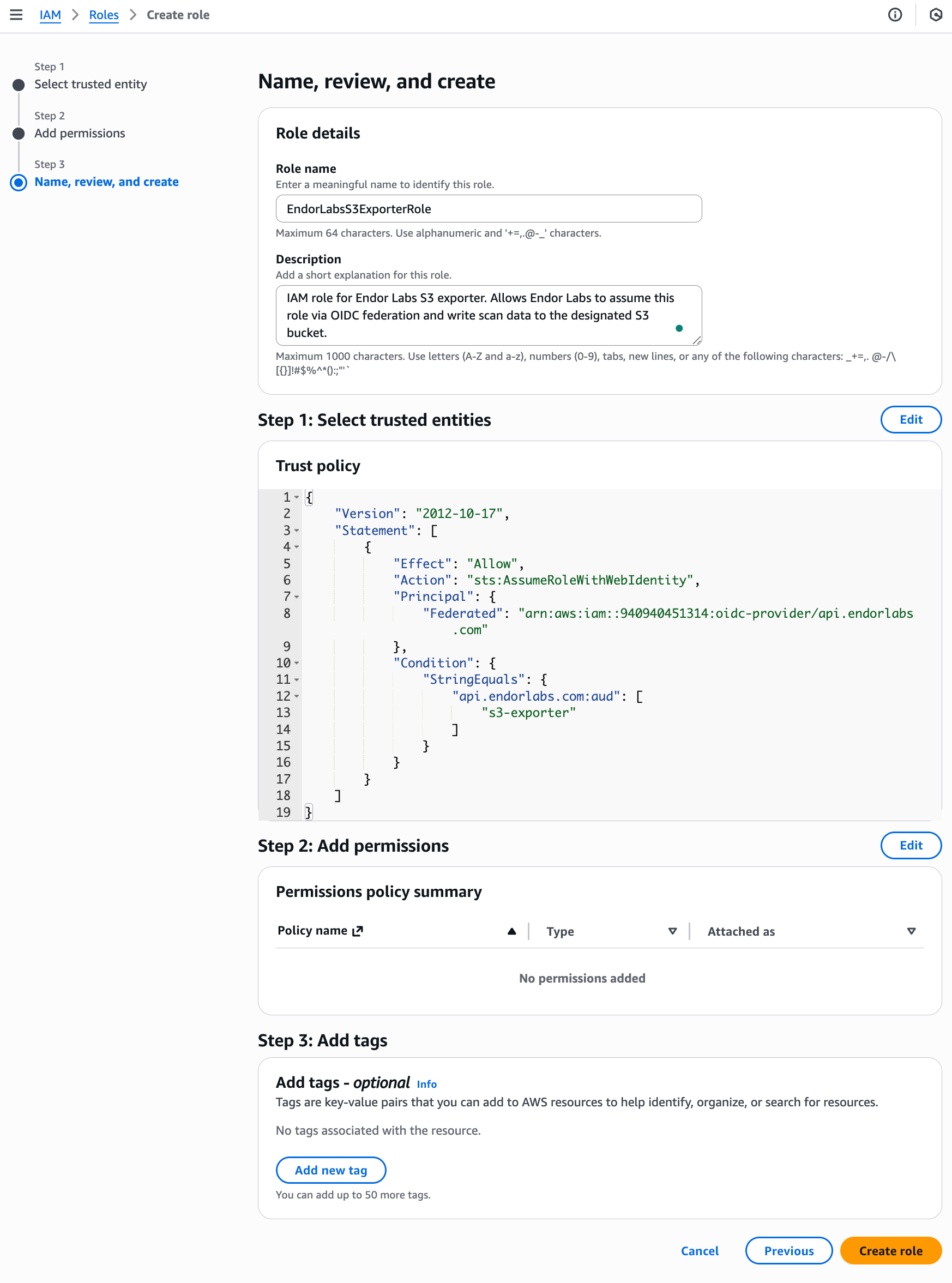
  2. Under Name, review, and create, enter a Role name for the S3 exporter role. For example, EndorLabsS3ExporterRole.
IAM role name
  1. Optionally, add tags to help identify the role.
  2. Click Create role.

Create an S3 exporter using the Endor Labs API to configure the export destination and data types.

The following table lists the configuration options required to create the exporter.

Parameter Description
<namespace> Your Endor Labs namespace
<exporter-name> A descriptive name for the exporter
<your-bucket-name> The name of your S3 bucket
<aws-region> The AWS region where your bucket is located, for example us-east-1. Refer to AWS regions for a list of region codes.
<iam-role-arn> The ARN of the IAM role you created
<oidc-audience> The audience value that you configured in the OIDC provider

Run the following command to create an S3 exporter.

endorctl api create \
  --namespace=<namespace> \
  --resource=Exporter \
  --data '{
    "meta": {
      "name": "<exporter-name>"
    },
    "spec": {
      "exporter_type": "EXPORTER_TYPE_S3",
      "s3_config": {
        "bucket_name": "<your-bucket-name>",
        "region": "<aws-region>",
        "assume_role_arn": "<iam-role-arn>",
        "allowed_audience": "<oidc-audience>"
      },
      "message_type_configs": [
        {
          "message_type": "MESSAGE_TYPE_FINDING",
          "message_export_format": "MESSAGE_EXPORT_FORMAT_JSON"
        }
      ]
    }
  }'

For example, to create an S3 exporter named s3-findings-exporter in the namespace doe.deer that exports findings in JSON format, run the following command.

endorctl api create \
  --namespace=doe.deer \
  --resource=Exporter \
  --data '{
    "meta": {
      "name": "s3-findings-exporter"
    },
    "spec": {
      "exporter_type": "EXPORTER_TYPE_S3",
      "s3_config": {
        "bucket_name": "my-endorlabs-exports",
        "region": "us-west-2",
        "assume_role_arn": "arn:aws:iam::123456789012:role/EndorLabsS3ExportRole",
        "allowed_audience": "s3-exporter"
      },
      "message_type_configs": [
        {
          "message_type": "MESSAGE_TYPE_FINDING",
          "message_export_format": "MESSAGE_EXPORT_FORMAT_JSON"
        }
      ]
    }
  }'

After creating the exporter, associate it with your scan profile. You can also set the scan profile as the default for your namespace so all projects use it automatically. See Scan profiles for more information.

  1. Select Settings from the left sidebar.
  2. Select Scan Profiles.
  3. Select the scan profile you want to configure and click Edit Scan Profile.
  4. Select your exporter under Exporters and click Save Scan Profile.

Associate your project with a scan profile to enable automatic export of scan data.

  1. Select Projects from the left sidebar and select the project you want to configure.
  2. Select Settings and select the scan profile you want to use under Scan Profile.

After configuration, subsequent scans automatically export data to your S3 bucket. You can trigger a scan immediately using the rescan feature. See Rescan projects for more information.

Endor Labs exports data to S3 using a hierarchical folder structure:

endor/
└── <exporter-uuid>-<exporter-name>/
    └── <namespace>/
        └── <project-uuid>-<project-name>/
            └── <scan-type>/
                └── <ref-or-pr>/
                    └── <timestamp>_<scan-uuid>.zip

Each path segment is defined as follows:

Level Example Description
Root endor/ Fixed prefix for all Endor exports
Exporter abc123-prod-exporter/ <exporter_uuid>-<exporter_name> - unique per exporter
Namespace acme-corp/ Your Endor Labs namespace
Project def456-my-service/ <project-uuid>-<project-name>
Scan Type schedule/ or pr/ Type of scan that triggered export
Ref or PR Number <branch-name>/ or <pr-id> Name of the branch or PR number
File 20251215T143025Z_xyz789.zip <timestamp>_<scan-uuid>.zip
my-bucket/endor/abc123-prod-exporter/acme-corp/6efgh-pythonrepo/schedule/main/20251215T143025Z_xyz789.zip

You can list, update, and delete S3 exporters using the Endor Labs API.

List exporters

Run the following command to list all exporters in your namespace.

endorctl api list --namespace=<namespace> --resource=Exporter
Update an exporter

Run the following command to update an existing exporter. Use the --field-mask parameter to specify the fields to update.

endorctl api update \
  --namespace=<namespace> \
  --resource=Exporter \
  --name=<exporter-name> \
  --field-mask "spec.s3_config.region" \
  --data '{
    "spec": {
      "s3_config": {
        "region": "us-west-2"
      }
    }
  }'
Delete an exporter
Note
You must disassociate the exporter from any linked scan profiles before deletion.

Run the following command to delete an exporter.

endorctl api delete --namespace=<namespace> --resource=Exporter --name=<exporter-name>