Notifications
Notifications are alerts generated when findings match the criteria defined in your action policies or remediation policies. They are sent to your configured notification integrations, such as email, Slack, Jira, webhooks, Vanta, or GitHub PR comments. The notifications view gives you centralized visibility across integrations, helps you debug and recover from delivery failures, and lets you track your security work queue through open and resolved states, and provides an audit trail of all notifications.
Prerequisites
To receive notifications, you must:
- Set up notification integrations
- Configure an action policy or a remediation policy with the Send Notification action.
View all notifications
To view all notifications in your namespace:
- Sign in to Endor Labs.
- Select Notifications from the left sidebar.
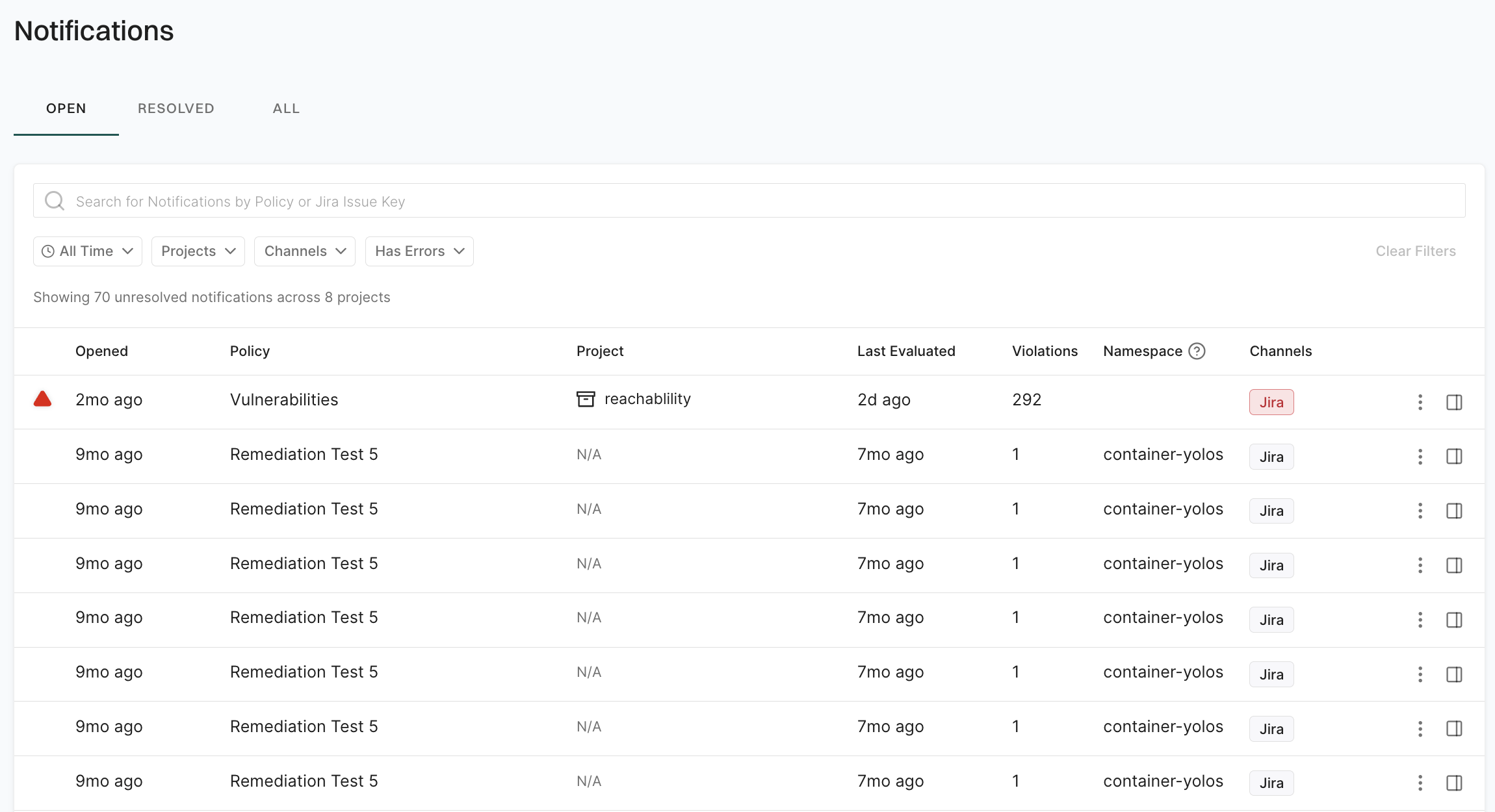
The notifications are organized into three categories:
- Open: Notifications for findings that are still open and require attention.
- Resolved: A notification is moved to resolved when the finding associated with it is either resolved or deleted.
- All: All notifications in your namespace, regardless of their status.
You can view the following details for each notification:
- Opened: Elapsed time since the notification was created.
- Policy: Action policy or remediation policy that triggered the notification.
- Project: The project associated with the notification.
- Last Evaluated: The elapsed time since the action policy or remediation policy was last evaluated.
- Violations: The number of policy violations that triggered this notification.
- Namespace: The namespace where the notification is created.
- Channels: The notification channels configured in your namespace where alerts are sent, such as Jira, Email, Slack, Vanta, Webhooks, and GitHub PR.
When a notification has an error, a red triangle appears next to it. Click the notification to view more details about the error.
Search notifications
You can search notifications by the policy name or Jira issue key.
- Policy name: Enter the action policy or remediation policy name to find all notifications associated with that policy. For example, search for
SASTto find all notifications triggered by the SAST action policy. - Jira issue key: Enter a Jira issue ID in the format
PROJECT-KEY-NUMBERto find all notifications associated with that Jira issue. For example, searching forBUG-235shows notifications that are linked to the Jira issue BUG-235.
Filter notifications
Use filters to refine notifications by time range, projects, notification channels, or error status. You can use the following filter options:
- All Time: Filter notifications by creation date. You can select from the following options: Last Day, Last week, last month, last 60 days, last 90 days, All Time, or you can customize the time range.
- Projects: Enter a project name in your namespace and select it. You can select multiple projects to view notifications from those projects.
- Channels: Filter notifications by notification channels such as Slack, Jira, Email, webhooks, Vanta, and GitHub PR. The channels displayed depend on the notification integrations set up in your namespace.
- Has Errors: Filter to show only notifications that have errors in their notification delivery. This includes errors such as failed delivery attempts, configuration issues, or unsupported scenarios.
View notification details
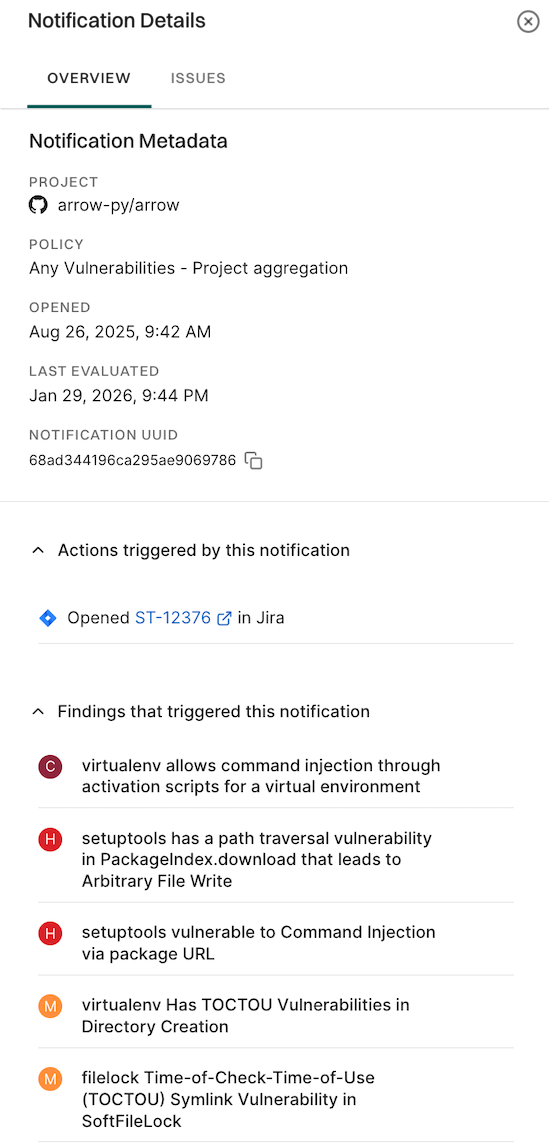
Each notification contains detailed information about the security event or policy violation that triggered it, including metadata about the associated project, the findings that caused the notification, and any actions that were taken in response. You can also view any errors that occurred during notification delivery.
To view notification details:
- Select Notifications from the left sidebar.
- Select a notification.
- Select Overview to view key information about the notification such as its metadata, triggered actions, and associated findings.
- Notification metadata: Project associated with the notification, the date and time when the notification was opened, the date and time when the policy was last evaluated, and the notification UUID.
- Actions triggered by this notification: Lists all actions that were triggered by the notification, including issue IDs created in external systems, and links to external tickets or pull requests.
- Findings that triggered this notification: The findings that matched the action policy or remediation policy criteria and caused this notification to be created.
- Select Issues to view error messages and troubleshoot notification delivery problems.
Manage notifications
Use actions on each notification to view details, navigate to the related policy, or dismiss notifications.
To navigate to the policy which triggered a notification:
- Select Notifications from the left sidebar.
- Click the vertical three dots on the notification whose policy you want to view.
- Select Go to Policy to view and update the policy.
Dismiss notification
Dismiss a notification to pause all further posting, processing, and updates associated with it. Endor Labs also stops sending updates to existing Jira tickets, emails, Slack messages, or webhooks, even if the underlying finding changes or gets resolved. You can still view dismissed notifications in the All category.
You can dismiss any notification from Open or Resolved.
To dismiss a notification:
- Select Notifications from the left sidebar.
- Click the vertical three dots on the notification you want to dismiss.
- Select Dismiss Notification.
Undismiss notification
When you undismiss a notification that is in Open state, Endor Labs re-evaluates it in the next scan cycle or schedule based on the current state of the underlying finding and then processes it accordingly, for example, sending updates to Jira, email, Slack, or webhooks if the policy applies.
To undismiss a notification:
- Select Notifications from the left sidebar.
- Click the vertical three dots on the dismissed notification.
- Select Undismiss Notification.
Notification integrations
You must configure notification integrations to receive notifications. These integrations define where notifications are sent when action policies or remediation policies trigger them. Endor Labs supports integrations like email, Jira, Slack, Vanta, and other tools.
- Email integration
- Jira integration
- Slack integration
- Webhooks
- Vanta integration
- GitHub PR remediation
- GitHub PR comments
Feedback
Was this page helpful?
Thanks for the feedback. Write to us at support@endor.ai to tell us more.
Thanks for the feedback. Write to us at support@endor.ai to tell us more.